OpenCms
knowledge base
Accessing the page editor
Method 1
1. To edit an existing page simply preview it (by clicking on its name). Enable Direct Edit by clicking the OpenCms icon ( ) on the far right:
 2. You can now mouse over grey bullseye icons (
 ) on the page to view editable areas with red dashes. Click the edit icons (
 ) to access the editor for that selection:

3. Left and right columns of a page are accessed via separate editors.
Method 2
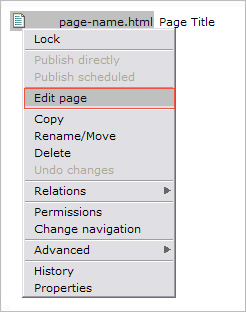
1. Another way to edit pages is to find the page in the Explorer Screen (it might be in a folder or sub-folder depending on the navigation structure of your site). Then, left-click the page icon ( ) and select Edit page from the drop down menu. Depending on your internet connection, it may take some moments for the drop down menu to appear:
Hint
If you ever have problems viewing page icons you can also right-click the page name and select Edit page from the drop down.
It is a good idea to familiarize yourself with folders and sub-folders as you will use method 2 when adding new pages or editing page properties (like navigation text).
Editor
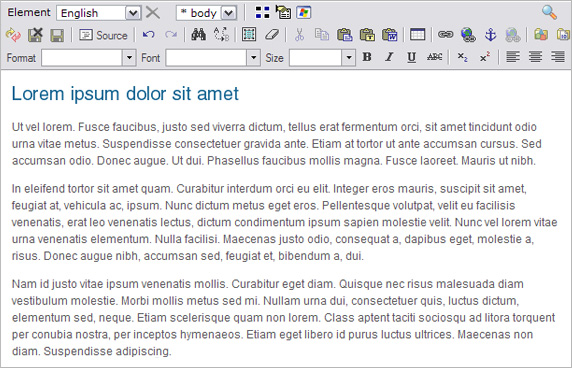
You are now in the "what you see is what you get" editor!